


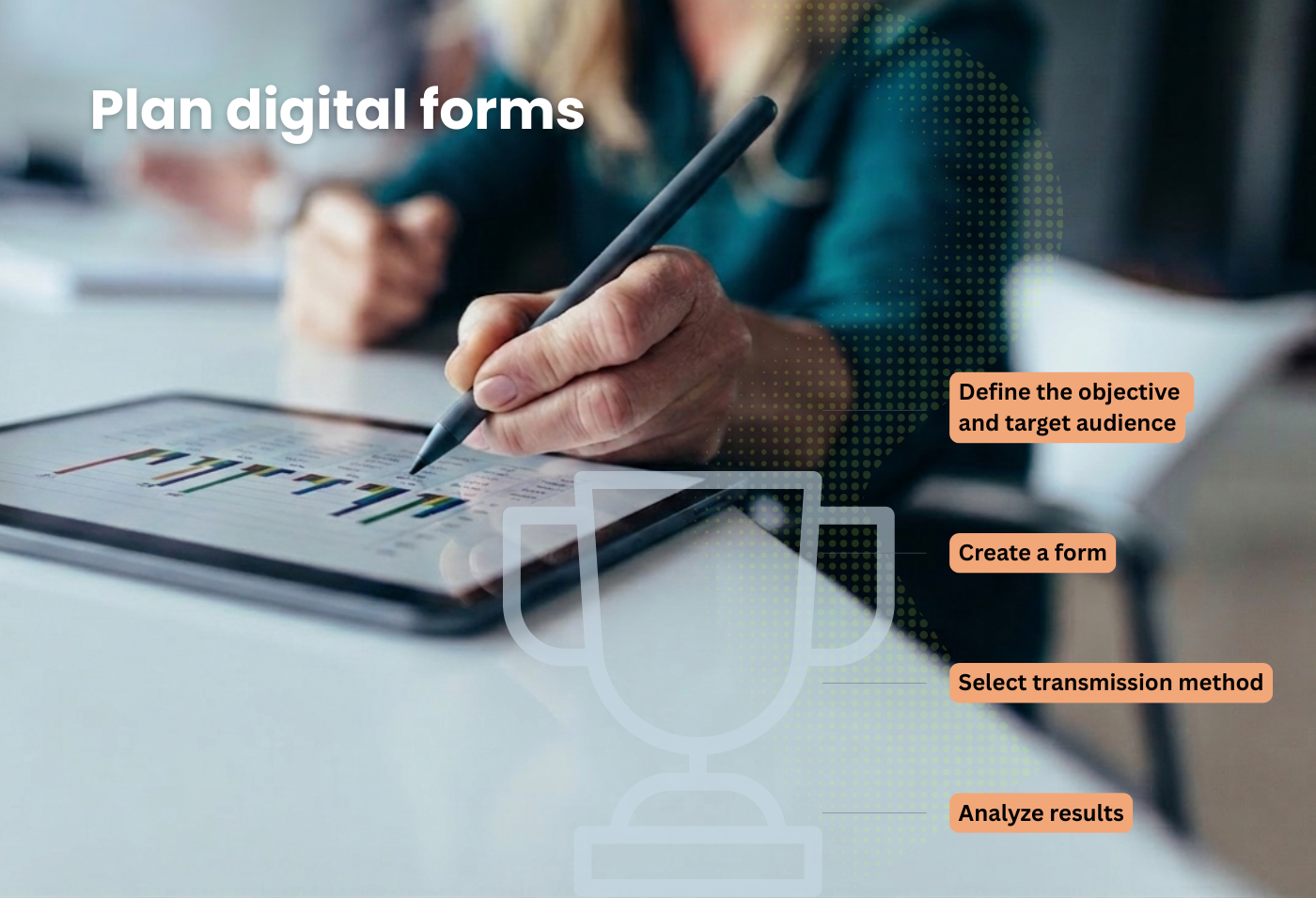
Well-designed digital forms not only collect information but also support the entire process—from data entry to analysis.
Digital forms can make day-to-day work much easier. They capture information in a structured way, reduce the need for follow-up questions, and ensure that data goes directly to the right place. For this to really work, you shouldn’t just slap a form together quickly.
Anyone planning to create digital forms should consider the entire process from the very beginning: What is the goal? Who will see the form? What happens after it is submitted? And how can the results be analyzed or processed later?
We also show you which processes are particularly well-suited in our article on the uses of digital forms.
Why good form design is so important
A good form doesn’t start with the first field, but with a clear understanding of the process behind it.
Forms are quick to build. A date field here, a text field there, maybe a dropdown menu and an upload option. Technically, this isn’t a big deal in modern digital solutions. The key question, however, is whether the form actually makes your day-to-day work easier.
This is because the design of forms determines whether information is received in full, whether responsibilities are clearly defined, and whether results can be analyzed or processed further at a later stage.
Clarify the purpose of the form
The first step is to ask the most important question: What is the actual purpose of the form? Is it to collect data, initiate a process, gather feedback, or document a procedure?
For example, a form can be used to collect onboarding data for new employees, track training requests, initiate a supply order, or document a malfunction. This purpose will later determine which fields, notes, and options for further processing are appropriate.
Define the target audience and visibility
Right after that, you should determine who should be able to view and fill out the form. Not every form is relevant to all employees. Depending on the subject matter, it may make sense to restrict visibility to specific divisions, locations, departments, or roles.
This isn’t just important for user guidance. A well-defined target audience can also help you better categorize responses later on. For example, if a form is only visible for a specific location or department, you don’t necessarily need to ask for that information again in the form.
Use categories for structure and orientation
Categories also play an important role in digital forms. They help organize forms clearly and assign them to specific subject areas.
At the same time, categories provide better guidance. Employees can find the right form more quickly when it is clearly organized. For later analysis, categories can also help group forms and submissions by subject area.
What happens after I submit the form?
A form is only truly useful if it’s clear how the results will be processed. That’s why you should decide early on whether submissions should be forwarded immediately or collected and exported later.
Depending on the use case, results can be sent to the appropriate personnel, transferred to other systems, or collected in a central location. PDF is particularly suitable when people need to review the data. JSON is especially useful when another system processes the data automatically.
A CSV export is particularly useful when you need to analyze multiple submissions collectively. This is ideal, for example, for feedback, registrations, regular data collection, or analyses spanning a longer period of time.
Define responsibilities early on
A form is only useful if, after it is submitted, it is clear who will view and process the results.
That is why these questions should be clarified right from the planning stage: Who is responsible? Who needs access? And who decides what happens next? In digital form solutions, this can usually be effectively managed through user roles, categories, and permissions.
Choose form fields carefully
When designing a form, remember this rule: only ask for what is truly necessary. Too many fields make a form unnecessarily cumbersome. Too few fields, on the other hand, lead to follow-up questions or missing information.
Date fields are ideal for dates and time periods. Dropdown menus are useful when information needs to be entered in a standardized way. Checkboxes work well for checklists and confirmations. Image uploads are convenient for users to submit proof directly through the app. Signatures are suitable for confirmations, and file attachments can be a useful addition to a form.
It’s also a good idea to use required fields sparingly. Use them only where information is truly necessary. This keeps the form easy to understand and makes it easier to fill out.
Incorporate evaluation from the very beginning
When planning digital forms, it’s also important to consider how the data will be analyzed later. Information can only be effectively compared and processed if it is recorded in a consistent manner.
Not all information needs to be requested directly in the form. For example, locations or departments can already be narrowed down based on a form’s target audience or visibility. Subject areas can be represented through categories. Within the form itself, dropdown menus are particularly useful for information that users are expected to actively assess—such as priority.
Instead of entering terms freely, users select from predefined options such as low, medium, high, or critical. This makes responses more consistent and helps with filtering, sorting, and analysis later on.
Test before publishing
Before a form is published, it should be reviewed one more time. Is the visibility set correctly? Are the required fields really necessary? Is it clear who can view and fill out the form?
A quick test is particularly helpful from the user’s perspective. This allows you to determine early on whether the structure, clarity, and ease of analysis are truly up to par. This final check, in particular, prevents many follow-up questions once the system is up and running.
Review and process submissions
After submission, it should be clear which submissions have already been received and what data has been transmitted.
Depending on the settings, individual submissions can be processed as PDF or JSON files. A CSV export is ideal for analyzing collected submissions. This way, the form becomes not just an input screen, but a useful component of your process.
Add context to forms
A form often works better when it’s not on its own. A brief note, an accompanying article, or a mention in the appropriate communication channel can explain what the form is for, when it should be used, and what information is important.
There, you can link directly to the form and add additional instructions. This makes it easier for users to understand the purpose of the form and provide the correct information.
Conclusion:
Good forms start before the first field
Anyone who wants to plan, design, and evaluate digital forms should think of them as part of a process from the very beginning. The objective, target audience, follow-up processing, design, and evaluation are therefore all interconnected.
If you address these points before publishing, you’ll create forms that not only collect information but also truly support your workflows. If you’d like to use digital forms with Staffice in your company, you can find more information on our forms page.
We’ve also put together a handy checklist:
Checklist: Planning Forms Effectively
Before you publish a form, our checklist will help you review the most important points: purpose, target audience, data processing, structure, and analysis.
This way, you can ensure that your form not only looks good but also works effectively in your day-to-day work.
Would you like to experience Staffice for yourself?
Try out our sample app and see how digital forms can be used in your daily work.
This will give you a sense of how forms, content, and processes work together in Staffice.